


















A Windows installer asks for something valuable: permission to make changes to your computer. Depending on the application, those changes may include adding services, registering file types, installing drivers, or starting background processes.
That does not make installers inherently suspicious. It does mean that checking a download before running it is worth a few minutes.
No single badge, checksum, or antivirus result can establish that a file is completely safe. A more useful approach combines several checks: where the download came from, who signed it, whether it matches the intended release, and what Windows reports when you try to open it.
Start with the Download Source
Before examining the file, examine the route that led you to it.
Was the download linked from the software publisher’s website? Did you arrive through an advertisement, a forum comment, or an unsolicited message? Does the domain match the organization you intended to visit?
Software directories can help you discover applications and compare their stated features. For example, softcoria.com provides a Windows software catalog that can serve as a starting point for researching programs. When moving from research to installation, cross-check the publisher, supported platform, and distribution details.
Prefer the developer’s official download channel or an appropriate Microsoft Store listing. If a publisher uses an external distribution service, follow the link from its own website rather than assuming that an unfamiliar download domain is legitimate.
A professional-looking page is not proof of authenticity. Neither is an HTTPS connection: encryption protects the connection to a website, but does not establish that the website’s operator is trustworthy.
Confirm That You Downloaded the Intended File
Check the file before double-clicking it.
An application advertised as a PDF editor should not unexpectedly arrive as a script with instructions to disable antivirus protection. Likewise, a download page promising a complete offline installer should explain if the file is actually a small downloader that retrieves additional components.
Compare the filename and version with the publisher’s release information. File size can provide context, but it is not a security verdict. Small installers may be legitimate, and large files can still contain unwanted software.
Make file extensions visible in File Explorer so that you can see the actual file type. A familiar icon or a name ending in what looks like a document extension can be misleading.
If the file type differs from what the publisher describes, pause and resolve the discrepancy before opening it.
Examine the Digital Signature
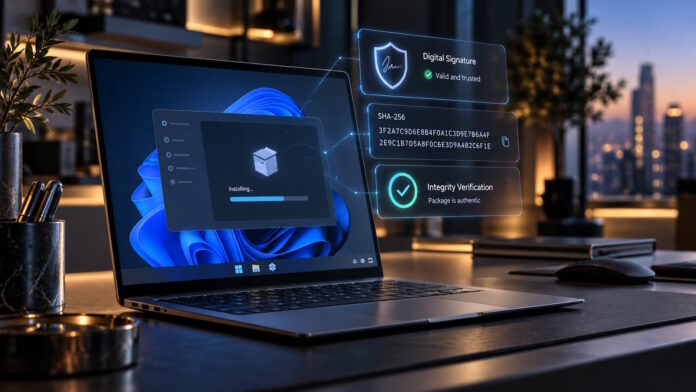
Many Windows installers carry a digital signature. A valid signature helps identify the signer and detect changes to the signed content after signing.
For a signed executable, right-click the file, open Properties, and look for a Digital Signatures tab. Select the signature and inspect its details. Pay attention to whether Windows reports it as valid and whether the signer’s name matches the expected publisher.
The legal company name may differ from the application’s brand. That difference is not automatically suspicious, but you should be able to explain it using information from the publisher.
A valid signature is useful evidence, not a guarantee of harmless behavior. Signed software can still be vulnerable or unsuitable for your needs. Conversely, an unsigned utility is not automatically malware, although it gives you less information to work with.
An invalid signature or an unexplained publisher mismatch deserves further investigation. Download the file again from the confirmed source and contact the publisher if necessary.
Compare a Published SHA-256 Checksum

Some developers publish a SHA-256 checksum alongside a release. This value acts as a fingerprint of the file’s contents.
Windows PowerShell includes Get-FileHash, which can calculate the SHA-256 hash of a downloaded file. Compare the complete result with the checksum for the exact version and architecture you selected.
A mismatch can have several explanations. You may have downloaded a different release, selected another build, received an incomplete file, or encountered a modified download. Do not proceed until you understand the difference.
The source of the expected checksum matters. A matching hash tells you that your file matches the published fingerprint. It does not independently establish that the program is trustworthy.
If an attacker controls both a download and the page displaying its checksum, the two can match perfectly. Use checksums as an integrity check alongside source verification and other evidence.
Understand What Windows Warnings Tell You
Windows security features can flag applications because of known threats, potentially unwanted behavior, or insufficient reputation.
Read the specific warning instead of treating every message as identical. A malware detection, an unfamiliar-app reputation warning, and an administrator approval prompt communicate different things.
An administrator prompt asks whether to permit elevated access. It does not certify that the application is safe. Consider why the program needs that access and whether the request fits its function.
A driver installer may reasonably need system-level permissions. A simple document or image should not unexpectedly require you to run an unrelated executable as administrator.
Do not routinely disable security protections to complete an installation. If a legitimate application is blocked, investigate the exact message and consult the publisher’s support information before deciding what to do next.
Scan the File Without Overinterpreting the Result
Keep your security software updated and scan unfamiliar downloads before running them.
A clean scan is reassuring, but it is not a promise that a file is harmless. Detection depends on the security product, its available information, and the behavior it can observe. Newly created threats may not be recognized immediately.
A detection also needs context. Some products distinguish malware from potentially unwanted applications, which may include software with intrusive advertising or undesirable installation behavior.
If you seek a second opinion through an online scanning service, review its submission and sharing policies first. Avoid uploading private documents, confidential business files, or proprietary installers without authorization.
Treat scanning as another layer of evidence rather than a substitute for checking the source and publisher.
Read the Installation Choices
Even after the file passes your checks, pay attention during setup.
Review optional components, startup settings, browser integrations, and changes to default applications. A legitimate program can still make changes you do not want.
Where an installer offers a custom setup option, use it to understand the available choices. Decline unrelated additions rather than accepting everything simply to finish faster.
For applications that process files, determine whether processing takes place locally or requires uploads. This is especially relevant for document converters, media tools, transcription software, and utilities that handle business information.
Do not assume that a desktop interface means all processing remains on your computer.
Test Before Using Important Data
After installation, start with copies of non-sensitive files.
For an archive utility, extract a test archive and verify its contents. For a document converter, inspect the output in another application. For a media tool, check a short clip before processing an entire project.
Keep original files separate and maintain a current backup of important work. Testing with copies limits the consequences of unexpected behavior, conversion errors, or confusing default settings.
If the software does not meet your needs, remove it and review any extensions or startup entries installed with it.
Make the Decision from Several Checks
Before running an installer, ask:
- Can I explain where the file came from?
- Does it match the application and release I intended to download?
- Is the publisher identifiable?
- If a signature is present, is it valid and expected?
- If a checksum is provided, does it match?
- Have I understood any security warnings?
- Are the requested permissions reasonable?
When the answers do not align, stop and investigate. You do not need to prove that a file is malicious before deciding not to install it.
The purpose of these checks is to replace guesswork with evidence. Source verification, signatures, hashes, security scanning, and careful installation each answer different questions. Used together, they support a more informed decision about what you allow onto your Windows PC.